iPhone will not charge: compare the power path before buying parts
Distinguish a damaged accessory, a charging limit, and a phone that needs service.
Describe the charging behavior
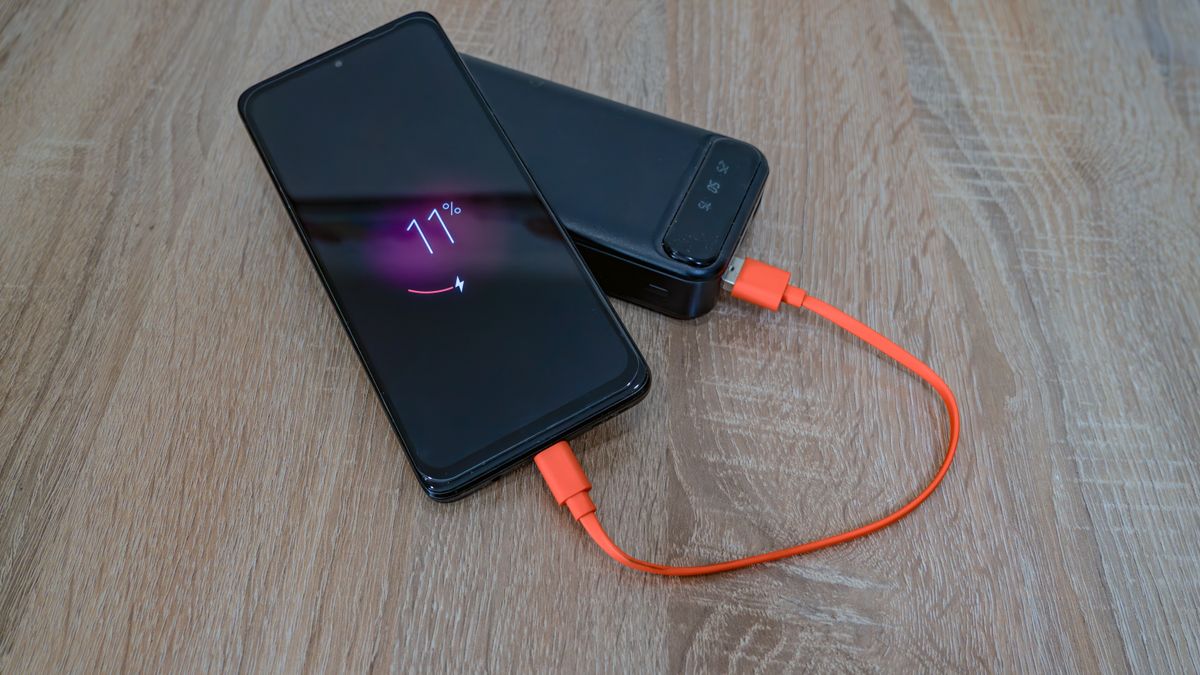
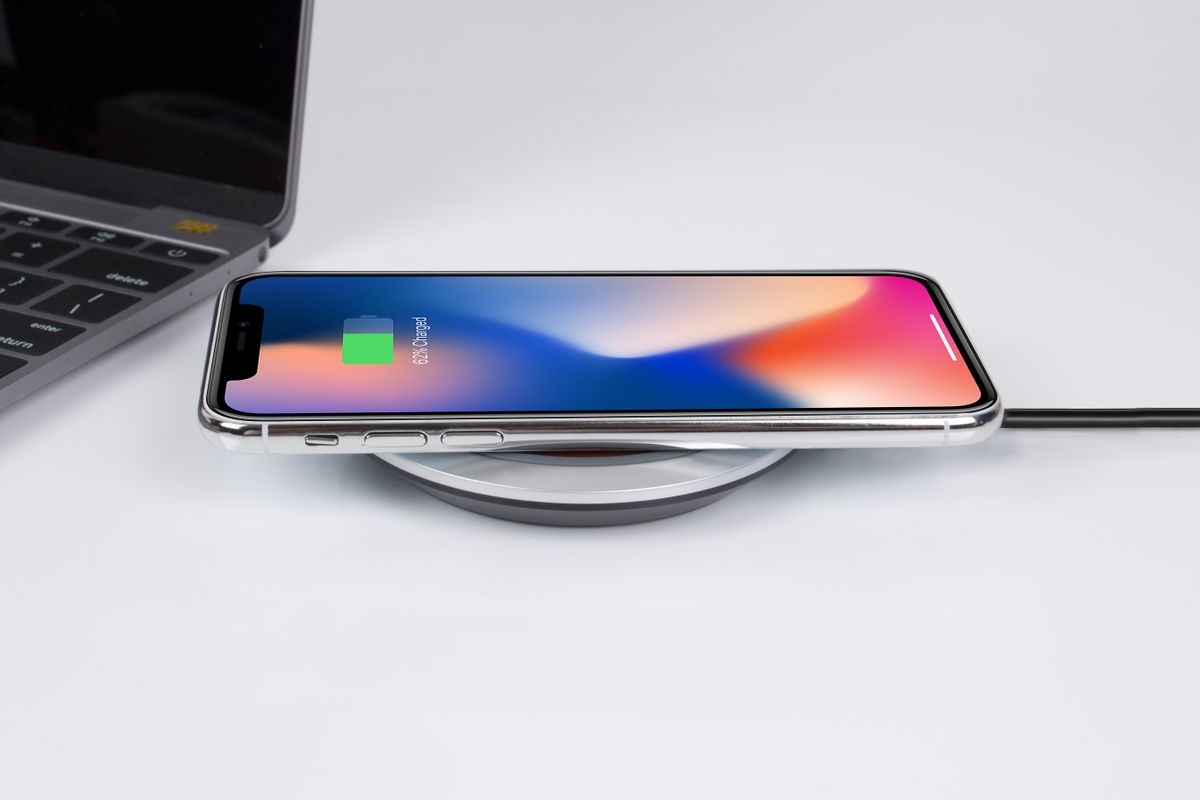
Write down whether the phone stays entirely dark, shows a charging symbol without rising, stops at a particular percentage, or displays an accessory alert. These observations point to different questions. Note the phone model and whether charging uses a cable, adapter, computer, or wireless pad. If it stopped at a consistent level while otherwise working, inspect charging settings before treating the behavior as a failed battery. Apple explains that optimized charging, temperature management, and charge limits on supported models can affect when charging proceeds. A percentage alone is not enough to diagnose a defective component.
Inspect accessories without improvising repairs
Look for damage to the cable and adapter, and stop using accessories with broken insulation or bent components. Choose a suitable known working cable and charger, then connect directly to a wall outlet for a controlled comparison. Avoid changing the outlet, cable, adapter, and charging method all at once if you want to learn which part was responsible. Inspect the port from outside; if cleaning is uncertain, obtain service guidance rather than pushing metal objects into it. A loose connection that only works at an angle deserves attention instead of being held in place indefinitely.
Give a depleted phone a fair test
After establishing a sound connection, leave the phone connected for the interval Apple specifies rather than repeatedly disconnecting it to see whether it wakes. Apple's guide uses a half-hour charging interval before further steps and another half hour after a model-appropriate force restart when needed. Consult the button sequence for your exact model. Keep track of the test and watch for unusual heat or visible damage. A quiet, controlled attempt is more informative than rapidly trying every household charger, especially when the battery may be deeply depleted and the screen provides little feedback.
Compare charging stops with settings
If the phone turns on and reliably stops at a configured limit, review that setting and its explanation before replacing hardware. If temperature-related behavior is suspected, move the phone and charger to an ordinary cooler location and allow them to settle; do not use extreme cooling. Repeat the test with the same accessories. For a worked example, a phone that charges normally on a second cable but repeatedly reports an accessory problem on the first has evidence against that cable. A phone that fails on several known working combinations needs a different next step.
Arrange service with a clear history
If supported checks do not restore charging, contact Apple or an appropriate service provider with the model, alerts, accessory combinations, and timings. Back up the phone if it can operate safely long enough to do so. Do not erase it to test a physical charging problem without a specific supported reason and a verified backup. After an accessory replacement or repair, confirm charging during the normal period you depend on it, such as overnight or between shifts. Reliability in that real routine matters more than a brief successful charging symbol during the initial test.
Sources & further reading
Source links support the factual context. Practical examples and suggested workflows are original editorial guidance. Sources checked October 5, 2026.
Spotted something we should correct? Send a correction. Read our editorial policy.