A slow iPhone: separate network waiting from device performance
Compare local tasks and online tasks before changing settings or replacing a battery.

Name the task that is slow
Describe the delay precisely: the keyboard appears late, a photo takes time to open, a feed loads slowly, or a webpage waits before displaying. Try a local task such as opening an existing note and then an online task such as loading a fresh page. If local interaction feels normal while online content stalls, investigate connectivity first. A strong signal indicator does not establish that every service is responding quickly. This comparison is especially helpful on a train or crowded network, where a phone can feel slow while its processor is not the part keeping you waiting.
Compare one network change
Repeat the online task on trusted Wi-Fi or, when your plan permits, cellular data. Use the same page or application and note the result. Do not conclude that all Wi-Fi is poor because one public network is crowded. If only one service is affected across both connections, check that service's official status or support information. Keep the local task as a reference. For example, immediate note editing plus slow video loading on one network suggests a different next action from a keyboard that remains delayed in every application and every location.
Inspect storage and power conditions
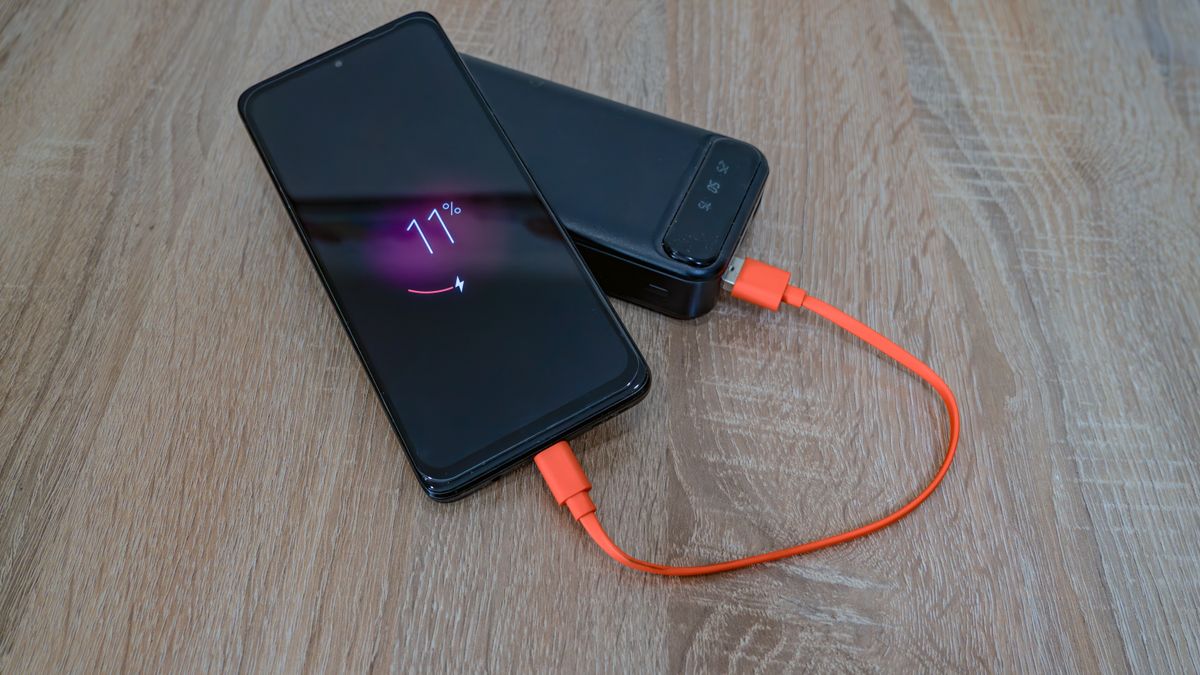
Apple's slow-device guidance asks users to check available storage, Low Power Mode, temperature, and battery health. Inspect those areas and record what you find before changing them. If storage is crowded, remove renewable downloads selectively and preserve personal data. If Low Power Mode is active, understand the battery tradeoff before turning it off for a comparison. Move an unusually hot or cold device to a normal environment and let it settle. These checks identify ordinary operating conditions without requiring an immediate erase or a purchase based on a vague impression of sluggishness.
Close a stuck app selectively
If one application stops responding, use the supported app-closing gesture for your model and reopen that application. Apple cautions that routinely force closing applications unnecessarily can slow subsequent reopening because data must load again. Test the failing task once more and note whether the problem returns at the same point. Save or export local work where possible before reinstalling any app. A problem limited to importing a particular file deserves a file-specific investigation; treating it as evidence that the entire phone is exhausted can lead to disruptive changes that do not address the trigger.
Decide what help you need
If interaction remains slow across local tasks after supported checks, contact Apple with the model, software version, available storage, battery-health information, and the concrete examples you tested. A touch issue can also resemble a performance problem, so mention missed or inaccurate taps. If battery service is recommended by the device, use that specific evidence when discussing repair. After any intervention, repeat the same local and online tasks in ordinary conditions. A useful result is a clear explanation of the delay and reliable performance in your routine, rather than a temporary boost you cannot reproduce.
Sources & further reading
Source links support the factual context. Practical examples and suggested workflows are original editorial guidance. Sources checked October 5, 2026.
Spotted something we should correct? Send a correction. Read our editorial policy.