Windows monitor says no signal: isolate the display chain
Test the monitor, cable, dock, and projection mode one link at a time.
Read what the screen is telling you
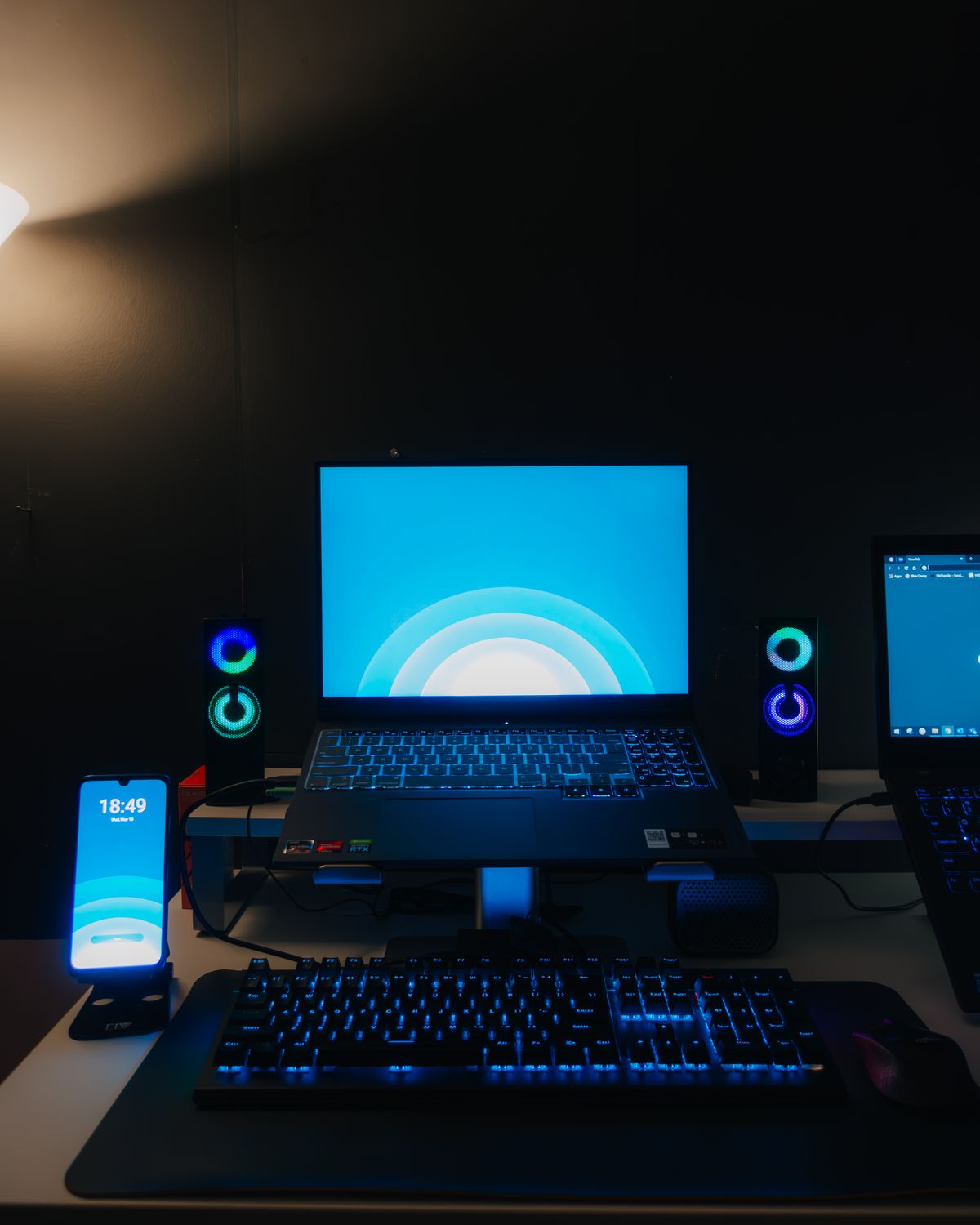
A monitor's own no-signal message differs from a black desktop that Windows is actively displaying. Open the monitor's built-in menu and confirm it has power, then select the input matching the connected cable. Write down the route: laptop USB-C, dock, HDMI cable, monitor HDMI port, for example. This little map makes later tests easier to interpret. If the laptop's own display works, keep it available while investigating. Do not start by changing several display settings and replacing every cable together, because a successful result would leave the cause unknown.
Check projection before replacing hardware
Microsoft recommends checking Windows plus P and choosing Extend when setting up an external display. Try the appropriate projection mode while watching both screens. A presentation may need Duplicate, while a desk setup may need Extend. Open display settings and note whether the external monitor is detected. If it appears there, the investigation differs from a display that never registers. Keep resolution experiments conservative and use settings the monitor supports. A screen that disappears after a setting change should prompt a return to the previous known working configuration.
Bypass one intermediary
If the computer supports a direct video connection, test the monitor without the dock or adapter. Use one known working cable and the same monitor input. If the direct connection succeeds while the dock path fails, you have narrowed the problem to that path rather than proving the monitor is broken. Check the dock maker's compatibility and power instructions. For USB-C hardware, read the specific port's capabilities instead of assuming every similarly shaped socket carries video. A charging connection alone does not establish that the entire display route is supported.
Run a controlled cross-test
Connect the monitor and cable to another compatible computer if one is available. Alternatively, test the original computer with a different known working display. Record each combination and its result. For example, monitor A works on computer B using cable A, but computer A fails with both displays through its dock. That evidence directs support toward the computer or dock. Microsoft notes that a simple display splitter duplicates a signal; it does not create independent extended desktops. Confirm this before buying extra cables to solve a limitation built into the setup.
Investigate recent changes with evidence
If yesterday's setup stopped working after an update, note the update date and graphics-driver details. Save work before restarting. Use the computer or graphics manufacturer's supported driver route when the evidence points there, and involve organizational IT for managed machines. A rollback can be relevant to a specific recent change, but broad driver removal is a later intervention. Provide support with the connection map, model numbers, successful combinations, and failure timing. After recovery, test the arrangement you actually use, including waking from sleep and reconnecting the dock, before calling the issue resolved. Label the working cable arrangement so the next desk reorganization preserves the successful connection path.
Sources & further reading
Source links support the factual context. Practical examples and suggested workflows are original editorial guidance. Sources checked October 5, 2026.
Spotted something we should correct? Send a correction. Read our editorial policy.